Your configurator is organized into major customization steps.
Step "Layout"
During this step, you can select from several predefined plan variants. Please note that some variants may not be selectable at the same time.
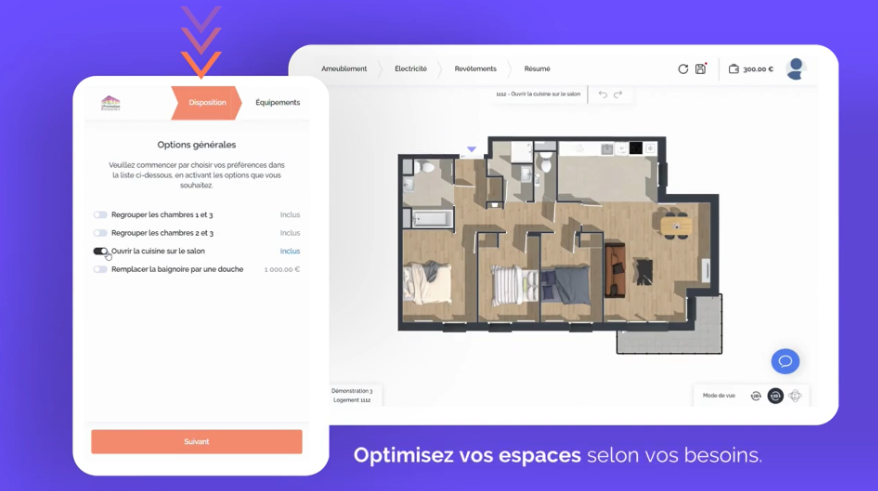
If your home does not offer any layout variants, don’t worry, you’ll be able to customize your equipment in the next step.
Step "Fixtures"
This step allows you to customize the base equipment planned for your layout and add new ones, according to the catalog provided by your developer.
On the left side of the screen, you will find a list of rooms where you can make customizations, as well as the customizable and additional equipment for each of them.

Step "Furniture"
This fun step allows you to visualize your space by furnishing and decorating your home according to your tastes and preferences.

Step "Electricity"
A practical home is one where you find outlets exactly where you need them most. That’s why this step allows you to add new electrical outlets in strategic locations and move existing ones, if permitted by your developer.
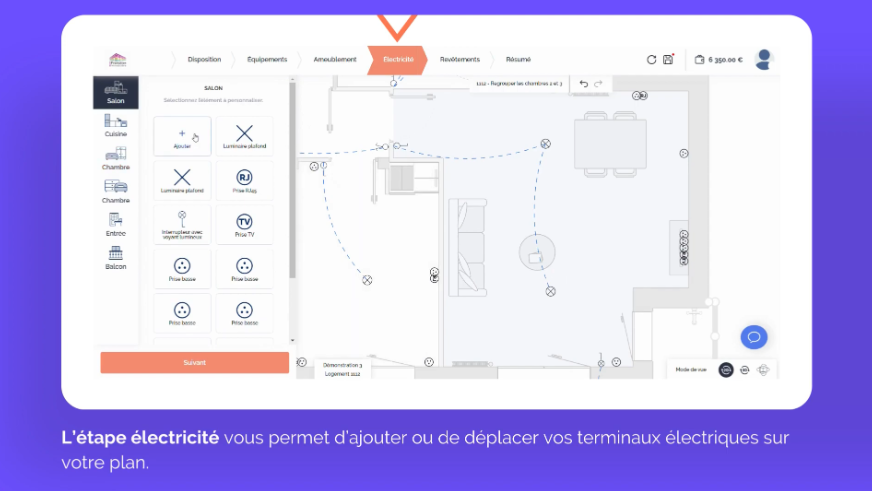
To help you with customizing your electrical plan, tutorial videos are available directly in your configurator. You can find them below:
Step "Coverings"
Here, you can select the floor and wall materials from the range offered by your developer, allowing you to personalize your home according to your tastes and preferences.
To help you make your choices, we provide a photorealistic view of a sample home equipped with the different coverings offered. This view will allow you to better visualize the final result of your selections.

Step "Summary"
In this step, you will find the details of your auto-generated quote, which will include the customizations you have made in the various steps of the configurator, as well as any additional options offered by your developer.
Additionally, if your developer allows it, you will have the option to add special requests. These allow you to submit specific requests that you could not make yourself in the configurator. These special requests will be reviewed by your developer, who will inform you if they can be fulfilled and at what cost.

This is also the step where you can submit all your requests for validation.
